
Why you keep hitting Claude’s usage limits (and how to stop)

I started using Claude the way one starts using any “great new tool”: enthusiastically, frequently, and with absolutely no understanding of what I was doing. I had the Pro plan, I was getting shit done, and feeling extremely pleased with myself. Look at me, embracing new technology and becoming wildly efficient. Someone sign this woman up for a TED Talk!
Now, I’ve only been using Claude for maybe three months, but I’ve been genuinely impressed. The quality of the output has been excellent, the interface is easy to use, and the tools, add-ons, and connectors are fantastic. Honestly, I thought I was done with ChatGPT, and was contemplating canceling my subscription. And then one afternoon, mid-project, Claude informed me that I had hit my usage limit.
Excuse me?
Not only had I hit my limit, but I would need to wait hours before I could continue working. Which, when you are in the middle of something and in your groove, may as well be days.
I stared at the screen in betrayal. I was on the paid plan. The “grown-up” plan. The plan that made me feel like I had moved past free-user mediocrity, and into a more sophisticated digital lifestyle.
So naturally, my first thought was: How is this happening?
As it turns out, I had done quite a few things wrong. Not because Claude is difficult to use, but because I didn’t understand how Claude’s usage actually works, or how easily you can burn through your “allotment” without realizing it.
So, if you’re new to Claude, or thinking about trying it out, this is worth knowing; before you get 20 messages deep into something important, and then abruptly find yourself ‘on hold’. Even if you are using a different AI tool, many of these tips are beneficial to use and will get you better results.
What are tokens, and why do they matter?
Claude doesn’t count messages. It counts tokens, which are roughly equivalent to words (technically about 3-4 characters of text each). “Hey Claude” costs about two tokens. One page of text is roughly 500 tokens. A 20-message conversation can easily clock in at 8,000 tokens, or more.
Here’s the part most people don’t know: every time you send a new message, Claude re-reads the entire conversation from the beginning before it responds. The first chat message costs almost nothing. Message 20 costs twenty messages worth of tokens before Claude has even started generating a reply. The longer a conversation gets, the more expensive each message becomes, and the faster you burn through your token allotment.
That’s the root cause of most people’s “why am I hitting limits already?” frustration. The good news is it’s easy to fix once you know why it’s happening.
Likely your next question is “so how many tokens to I get?”. Great question, and Anthropic (the creators of Claude) are deliberately vague about this. They do not publish an actual number. Instead, it depends on a combination of factors:
- Which model you’re using (Haiku eats far fewer tokens than Sonnet or Opus)
- How long your conversations are
- Whether you have files attached
- What time of day it is (peak hours = tighter limits)
Your usage resets every five hours on a rolling window. On top of the 5-hour window, there’s also a weekly cap. And if you happen to reach your limit and your usage is restricted? Claude will tell you what time your usage will reset and when you can continue working.
Of course Claude will also present you with the option to buy more tokens/usage. I would strongly recommend learning how to use Claude more efficiently before you go down that slippery-slope!
You can check your real-time usage at claude.ai/settings/usage. That’s the most accurate picture of where you actually are at any given moment.
Tip 1: Edit your message instead of sending a follow-up
When Claude gives you a response you’re not happy with, the natural instinct is to send a follow-up: “actually, can you make it shorter?” or “I meant a casual tone, not formal” or “here’s the info I meant to include in my message, but hit return to soon”.
Don’t. Every new chat message adds to the conversation length, and now Claude has to re-read everything from scratch again.
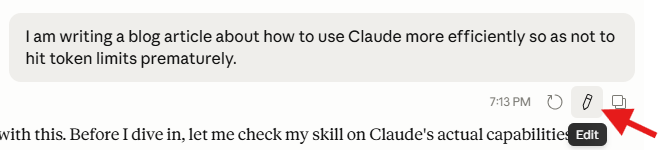
Instead, click the little pencil icon at the bottom right the original chat message. It will open an editable version of your original message. Make your change, and then click save. Claude will re-generate it’s answer using the new information provided.
The original message gets replaced rather than stacked on top of a new one. Your conversation stays shorter, your token count stays lower, and you still get what you want. This works the same way in ChatGPT and Gemini (note: the edit icon is on the top left side of the Gemini message box). Any AI with an edit function benefits from this habit.
Tip 2: Put everything into one message
If you have three related things to ask, don’t send three separate messages. Write one comprehensive message with all three. Claude will read the conversation once and answer everything together, rather than re-reading it three times for three separate exchanges.
Before you hit return, take a moment to think about everything you need from this particular task and write it out in one go. “Write me an intro paragraph, a three-point summary, and a call to action, in a conversational tone” is one message. Sending those three as separate follow-ups is three messages, with the conversation growing longer each time, is burning tokens unnecessarily.
Batching will produce better results too, because Claude has the full picture of what you’re trying to accomplish rather than guessing from a fragment. And although other AI tools don’t necessarily have token limitations, you will still benefit from better quality responses because you’ve provided much better context upfront.
Tip 3: Only give Claude what it actually needs
If you’re working from just part of a document, you don’t need to upload the whole thing. Uploading a full PDF can cost up to 3,000 tokens per page. If you only need Claude to work with two paragraphs, copy and paste those two paragraphs instead.
The same principle applies to background context. Give Claude what’s relevant to the specific task, not everything you know about the topic. More isn’t better here; it’s just more expensive.
Worth noting: if your conversation has drifted off-topic for several exchanges, or you’ve finished one task and are starting a completely different one, start a fresh chat. There’s no benefit to dragging a long conversation history into a new task.
Tip 4: Ask for specific fixes, not full redos
When something in Claude’s response is off, point to exactly what needs changing. “Only redo the second paragraph, make it shorter and drop the last sentence” is much more efficient than “redo this.” A full redo regenerates everything from scratch, re-reading the whole conversation in the process. Fixing one section only touches what’s actually broken.
This is also better practice for getting useful results. The more specific you are about what needs changing, the less likely you are to accidentally lose the parts that were already working.
Tip 5: Reset when a conversation gets long
When a conversation has been running for a while and you notice the responses starting to slip in quality (Claude losing track of earlier instructions, giving answers that feel slightly off), that’s what’s called context rot. It’s a real thing: very long conversations can actually produce worse results because older information gets harder for Claude to reference accurately. You’re not imagining it.
When that happens, ask Claude to summarize everything important from the conversation. Copy that summary, open a fresh chat, and paste it in as your opening context. Clean slate, no lost progress. A rough rule of thumb: if you’re working on something and you’re past 15 to 20 messages, a reset is probably worth it.
Tip 6: Choose the right model for the job
Most AI tools give you more than one model to pick from, and it’s worth knowing the difference. In Claude, you’ll see options like Haiku, Sonnet, and Opus. Think of them like settings on a washing machine: you don’t need the heavy-duty cycle for a t-shirt.
Haiku is Claude’s smallest, fastest model. It’s great for simple tasks: answering a quick question, drafting a short email, summarizing something brief. It uses far fewer tokens than the bigger models, which means your usage budget stretches a lot further.
Sonnet sits in the middle. It’s more capable than Haiku and handles more complex writing, analysis, and longer tasks well. This is the one you’ll probably use most often.
Opus is the most powerful, and the most token-hungry. Save it for your most demanding work, the stuff where quality really matters and you need Claude at its best.
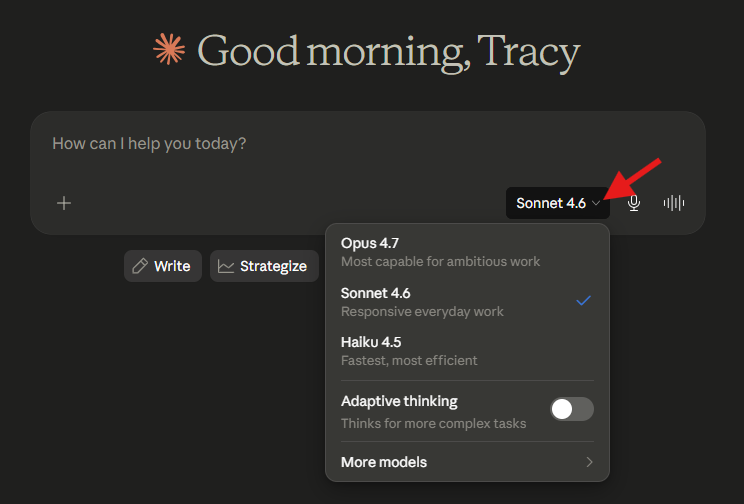
To switch models in Claude, look for the model selector at the bottom of your chat window before you type your first message.
Tip 7: Give Claude a role and clear context before you start
This is less about saving tokens and more about not wasting the ones you do spend. Vague prompts produce vague results, which means more back-and-forth to get to something useful, which means more tokens.
Before you ask for anything, make sure to tell Claude who it’s writing for, what tone you want, and what the output needs to look like or accomplish. A sentence or two of framing at the start of a chat costs almost nothing and saves a lot of iteration later (think of it like giving a briefing before a meeting rather than trying to course-correct later on).
This applies to all AI tools, not just Claude. ChatGPT and Gemini both perform noticeably better with clear context upfront.
The short version (TLDR)
You’re not hitting Claude’s limits because the Pro plan isn’t generous or because you’re doing something unusual. You’re hitting them because AI tools count all the text in a conversation, not just your last message, and a few perfectly natural communication habits can burn through that budget quickly.
- Edit your original message instead of responding with a new one
- Batch your requests into one comprehensive message
- Paste only what’s relevant, don’t upload a large document for just 2 paragraphs
- Ask for specific fixes rather than full redo’s
- Start a fresh chat when you get to 15-20 messages
Those five changes will get you substantially further before you hit a token wall, and they’re all habits you can start today.
One more thing worth knowing: Claude is genuinely good at helping you use it better. If you’re unsure whether you’re prompting it efficiently for a particular task, just ask. “Am I structuring this in a way that’s wasting tokens?” is a completely reasonable question, and it’ll give you a straight answer.
If you’ve sorted your token usage habits and you’re ready to get sharper results from every prompt you write, my guide on how to write better AI prompts is a good next read.
Got a Claude tip that’s made a difference for you? Share it in the comments below, I’d love to hear it.
Share this post with a friend:
Copy LinkLink copied!